


Are you sure you got hacked? We close out our Indicators of Compromise series with a look at netstat. Netstat is an application available in Windows and Mac that shows network connections on your computer, which applications or services are listening, and who they are talking to on the other end. While some of the data produced can be overwhelming, let’s see if we can simplify it enough to determine if we have a bad actor on our system. If you’re unsure of how the Internet works, read this article.
In order to run netstat, you must be in either a Command Prompt, Console/Terminal Window, or PowerShell session and you must run this as an administrator in Windows. The easiest way to do this in Windows is type cmd in the search bar. This will bring up the Command Prompt option in the menu. Right-click the Command Prompt icon and select “Run as Administrator”.
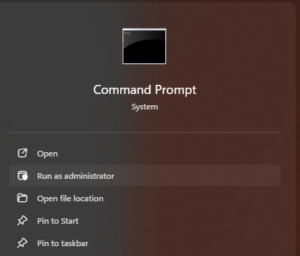
Why is administrator access required? Because you are looking at privileged information regarding system processes and outside connections only administrators can see. Let’s try it on a typical Windows computer. We start by checking out netstat with the /? Flag.
Command: netstat /?
This will give us all the different options we can run with netstat. If you are unfamiliar with the program, I recommend starting with options a, b, and f. They do the following:
-a – Displays all connections and listening ports
-b – Displays the executable involved in creating each connection or listening port
-f – Displays Fully Qualified Domain Names (FQDN) for foreign, or non-local, addresses.
NOTE – You should try other options to see the level of detail provided. Network administrators, Help Desk, and PenTesters use netstat in troubleshooting and enumeration.
Run the following command in the Command Prompt as administrator.
Command: netstat -abf
As you can see, you can combine command flags after the dash. Here is the output.
Active Connections
Proto Local Address Foreign Address State
TCP 0.0.0.0:135 PC01:0 LISTENING
RpcEptMapper
[svchost.exe]
TCP 0.0.0.0:445 PC01:0 LISTENING
Let’s break it down. The headers are Proto (protocol), Local Address, Foreign Address, and State. You’ll also see a Description and executable listed below. As mentioned before, the term “Foreign Address” just means the address where the other side of the network connection terminates.
The first item listed says that on protocol TCP the local address of 0.0.0.0 port 135 is in the state of Listening. 0.0.0.0 means the computer is listening on ALL IP addresses. You’ll notice the Foreign Address says PC01 and port 0. Because we are in a Listening state, this is simply filler and is actually the Fully Qualified Domain Name (FQDN) of the computer. Notice the application listening is called RpcEptMapper and it’s associated executable/program is svchost.exe.
Svchost.exe is the Windows default used for services that start with the system. In this case, we know this is the RPC protocol by port 135 and the name RPC Endpoint Mapper (RpcEptMapper). The next port is 445 and this Server Message Block, or SMB, used by Windows to communicate and transfer information between other Windows-based computers. Yes, you can use SMB with Mac, Linux and most other systems.
Proto Local Address Foreign Address State
TCP 127.0.0.1:1540 PC01:1541 ESTABLISHED
[bdservicehost.exe]
TCP 127.0.0.1:1541 PC01:1540 ESTABLISHED
[bdservicehost.exe]
TCP 127.0.0.1:1545 PC01:1546 ESTABLISHED
[bdservicehost.exe]
TCP 127.0.0.1:1546 PC01:1545 ESTABLISHED
[bdservicehost.exe]
TCP 127.0.0.1:1549 PC01:1550 ESTABLISHED
[bdservicehost.exe]
TCP 127.0.0.1:1550 PC01:1549 ESTABLISHED
[bdservicehost.exe]
The next section of ports are listening on Local Address 127.0.0.1. This is the local loopback of the computer and can be reached no matter what actual network address the computer has. Why do you need a local loopback address? In the example, you can see several port in the 1500 range connected to PC01. This is BitDefender, the Endpoint Protection Software of this computer. The local loopback allows applications and programs to communicate across the network locally to verify connectivity, monitor traffic, and allow different parts of the application to communicate outside of local memory and processing.
Any program listening on the local loopback address of 127.0.0.1 can ONLY be accessed by other applications physically running on the computer. If you try to reach another computer by the local loopback, you will always be talking to yourself. This allows other applications to communicate across the network interface instead of locally, especially if the application is communicating with an outside system, like an update service.
Proto Local Address Foreign Address State
TCP 192.168.1.1:445 Server01:48708 ESTABLISHED
Finally, you will a section showing the local address as the assigned IP address of the computer. In this case, 192.168.1.1. This is where we want to focus as it shows active connections with other devices in our network and the Internet. An example of a shared drive using SMB can be seen below. The foreign address, Server01, is another local computer.
Proto Local Address Foreign Address State
TCP 172.20.103.15:7162 ~.akamaitechnologies.com:https ESTABLISHED
[chrome.exe]
TCP 172.20.103.15:7342 ~.service-now.com:https ESTABLISHED
[chrome.exe]
What you can see even on an idle machine may surprise you. For instance, in this example, you will be Chrome actively reaching out to Akamai Technologies and Service Now, though I’m idle. I do have pages open for both of those. If you see ESTABLISHED connections showing up from your web browsers when your browsers or closed, this could be an indicator of compromise. However, keep in mind that most applications run scheduled tasks in Windows and Mac to call home and check from updates from the manufacturer. Learn how much data you leak in this article.
What does a compromise look like when you are hacked? Some of the more obvious Indicators of Compromise are connections to IP addresses and not a Fully Qualified Domain Name (FQDN). Or, you may see an application you didn’t know was installed on your computer, like a remote control software, connecting to an IP address. Follow the instructions in this article to determine the offending program. How can you determine where IP address go if they don’t resolve to hostnames? Start here: Link to IANA
On this page you can look up any IP address and it will tell you who owns it. In most cases, you will discover it is a legitimate connection and you will be surprised to see how many Fortune 500 companies tie back through AWS, Google, and Microsoft. If, however, you see connections going outside your home country, like if you sit in Atlanta and see connections going to Russia, you may have a problem. The following list of countries have been flagged as hot spots for hackers, scammers, and ransomware gangs.
North Korea, Iran, Iraq, Russia,
China, India, Brazil, Bangladesh, Pakistan,
Nepal, Romania, Afghanistan, Turkey, Belarus,
Syria, Ukraine, Somalia, Yemen, Zimbabwe
Honestly, you’re better off keeping a whitelist of countries and blocking all other traffic at the firewall level, inbound and outbound. This will prevent most issues that doesn’t use a Remote PC application. See the Hillbilly Hacker’s Hot Spam video to see how hackers work around firewalls, Endpoint Protection and Internet Security measures. If you have connections showing to any of these, you need to contact a professional to determine if it is legitimate or a true Indicator of Compromise.